Common HappyMod Problems and How to Fix Them
November 4, 2026 (2 weeks ago)
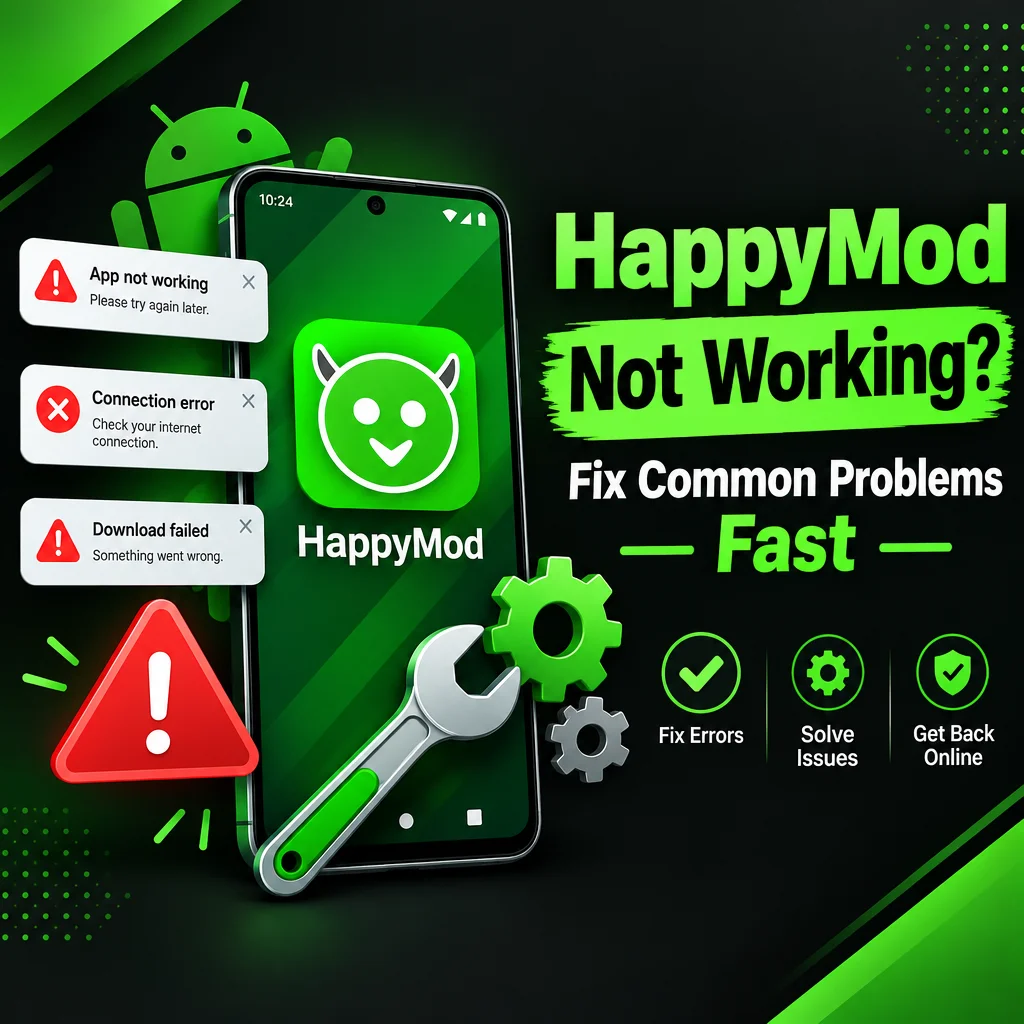
HappyMod is a popular marketplace for modified Android apps and games. Many users install it to try apps with extra features, unlocked content, or custom settings. But like any third party app store, it can sometimes run into problems. Downloads may get stuck, APK files may fail to install, mods may crash, or Android may block the app for safety reasons. The good news is that many HappyMod problems are easy to fix if you know where to look. This guide covers the most common issues and simple troubleshooting steps you can try.
1. HappyMod Is Not Installing
One of the most common problems is that the HappyMod APK does not install on Android. You may see messages like “App not installed,” “Installation failed,” or “Can’t open file.” This usually happens because Android blocks apps from unknown sources, the APK file is damaged, or there is not enough storage space.
- Allow unknown app installs: Go to your phone settings, then open Security or Privacy settings. Find “Install unknown apps” and allow installation for the browser or file manager you used to download HappyMod.
- Check your storage: Make sure your device has enough free space. Delete old files, unused apps, or cached data if needed.
- Download the APK again: If the file is corrupted, delete it and download a fresh copy from a trusted source.
- Restart your phone: A simple restart can fix temporary installation errors.
If the problem continues, check whether your Android version is too old or too new for the APK version you downloaded. Some versions of HappyMod may not work correctly on every device.
2. “Parse Error” When Opening the APK
A parse error means Android cannot read or process the APK file. This can happen when the APK is incomplete, not compatible with your Android version, or blocked by your device settings.
- Delete the APK file and download it again.
- Make sure the APK is fully downloaded before opening it.
- Check that your Android version supports the app.
- Try using a different browser to download the file.
- Disable battery saver while downloading large APK files, as it may interrupt the download.
Do not keep trying to install the same broken file repeatedly. If the APK is damaged, it will not work no matter how many times you tap it.
3. Downloads Are Stuck or Very Slow
Sometimes apps inside HappyMod may get stuck at 0%, pause randomly, or download very slowly. This is often related to internet connection problems, overloaded servers, cache issues, or restrictions from your network.
- Switch networks: Try changing from mobile data to Wi-Fi, or from Wi-Fi to mobile data.
- Clear HappyMod cache: Open Android Settings, go to Apps, choose HappyMod, then tap Storage and clear cache.
- Pause and restart the download: Stop the download, close the app, reopen it, and try again.
- Disable VPN temporarily: Some VPN servers can slow down APK downloads or block certain links.
- Try later: If the server is busy, waiting a few minutes can help.
If only one app will not download, the problem may be with that specific file. Try downloading a different version of the same mod if available.
4. HappyMod Keeps Crashing
If HappyMod opens and then closes, freezes, or shows a blank screen, there may be a cache problem, compatibility issue, or conflict with your Android system. Crashes are also common after app updates.
- Force stop HappyMod from your app settings, then open it again.
- Clear cache and data if the app keeps freezing.
- Update HappyMod to the latest available version.
- Restart your device after updating.
- Turn off aggressive battery optimization for HappyMod.
To disable battery optimization, go to Settings, then Battery, then Battery Optimization or App Battery Management. Find HappyMod and set it to “Not optimized” or “Unrestricted,” depending on your phone brand.
5. Modded Apps Will Not Install
Even if HappyMod works fine, some downloaded apps may fail to install. This often happens when the original version of the app is already installed on your phone. Android may block the modded version because the signatures do not match.
- Uninstall the original app before installing the modded version.
- Back up important app data if possible.
- Restart your phone after uninstalling the original app.
- Install the modded APK again.
Be careful with apps linked to accounts, cloud saves, or online profiles. Some data may not transfer to the modded version. For games, you may lose local progress if it is not backed up.
6. Mod Features Are Not Working
Sometimes an app installs successfully, but the promised mod features do not work. For example, coins may not increase, premium tools may stay locked, or ads may still appear. This can happen when the mod is outdated, the app requires server verification, or the feature only works offline.
- Read the mod description carefully before installing.
- Check user comments to see if the mod works for others.
- Try another version of the mod.
- Use the app offline if the mod description suggests it.
- Avoid logging in with your main account if the app has strict rules.
Many online games store coins, purchases, and player data on their servers. In these cases, local mod changes may not work. If a feature is controlled by the server, it usually cannot be changed safely from your phone.
7. Google Play Protect Blocks HappyMod or APK Files
Android may show security warnings when you install HappyMod or apps downloaded from it. This is common with third party APK files because they do not come from the Google Play Store. However, you should not ignore every warning blindly.
- Only download APK files from sources you trust.
- Scan files with a mobile security app before installing.
- Check app permissions before opening the app.
- Do not install apps that ask for strange permissions, such as SMS access for a simple game.
- Avoid installing modified banking, payment, or password manager apps.
If Play Protect gives a serious malware warning, it is better to cancel the installation. Extra features are not worth risking your personal data.
8. “App Not Installed as Package Conflicts With an Existing Package”
This error means Android found another app with the same package name already installed. It may be the original app, another modded version, or an old leftover installation.
- Uninstall the existing version of the app.
- Check your app list for duplicate versions.
- Clear leftover files using your phone’s storage cleaner.
- Restart the phone before trying again.
If you still see the error, the app may have been installed as a system app or inside a work profile. Check your secure folder, dual apps space, or second user profile if your phone supports those features.
9. Login Problems in Modded Apps
Some users find that Google, Facebook, or game account login does not work in modded apps. This can happen because modified apps may not pass security checks. Google services may also reject apps with changed signatures.
- Try guest mode if the app offers it.
- Use a secondary account instead of your main account.
- Check whether the mod description mentions login support.
- Install a different version if other users report better results.
Never enter sensitive login details into an app you do not fully trust. Modified apps can carry higher privacy risks than official versions.
10. Basic Maintenance Tips to Prevent Problems
A few simple habits can help HappyMod run more smoothly and reduce errors. Since HappyMod deals with APK files from different sources, it is important to keep your phone clean, updated, and protected.
- Keep Android updated when possible.
- Clear HappyMod cache regularly.
- Delete APK files you no longer need.
- Check user ratings and comments before downloading mods.
- Back up important data before installing modified apps.
- Do not install too many unknown APKs at once.
HappyMod can be useful if you want to explore modified Android apps and games, but problems can happen. Most issues come from permissions, storage, compatibility, damaged APK files, or outdated mods. Start with the simple fixes first: restart your phone, clear cache, check storage, and reinstall the APK. If something feels unsafe or asks for too many permissions, skip it. Safe troubleshooting is not just about making the app work, it is also about protecting your device and personal data.
Recommended For You