How to Update HappyMod to the Latest Version
November 9, 2026 (6 days ago)
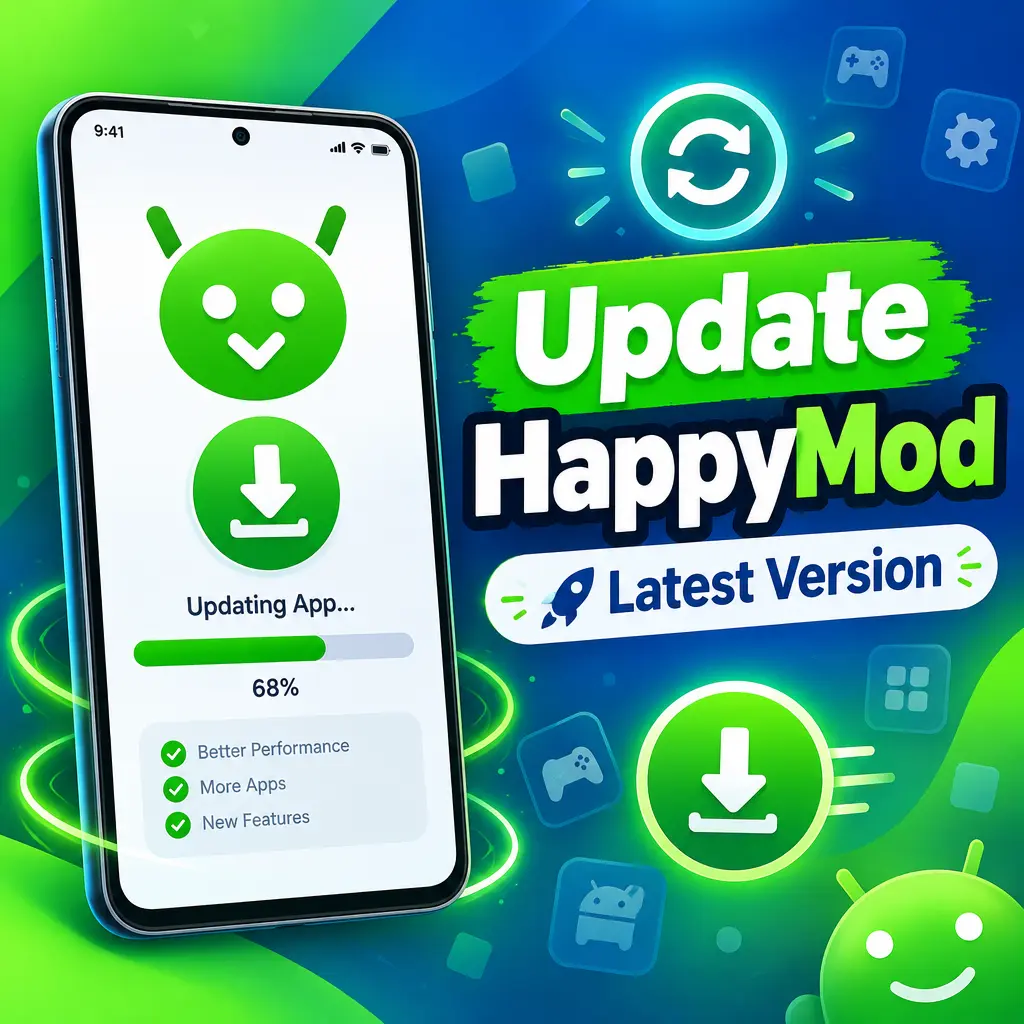
Keeping HappyMod updated is important if you use it to browse modified Android apps and games. A newer version usually brings a smoother app experience, better download speed, fewer crashes, fixed bugs, updated app listings, and improved compatibility with newer Android devices. Since HappyMod is not usually updated through the Google Play Store, the update process is a little different from regular apps. This guide explains how to update HappyMod to the latest version safely and easily.
Why You Should Update HappyMod
HappyMod is a marketplace for modified Android apps and games, offering extra features, unlocked content, and customizations. Because it depends on user uploads, app listings, and download servers, updates can make a noticeable difference in how well the platform works.
- Newer versions may fix login, download, or installation problems.
- The latest version can support newer Android versions better.
- Updates may improve app search, categories, and loading speed.
- Bug fixes can reduce crashes and frozen screens.
- Security improvements may help protect the app from common issues.
If your current HappyMod app is slow, showing errors, or failing to download APK files, updating it should be one of the first things you try.
Before You Update HappyMod
Before installing the latest version, take a few simple steps to avoid problems. Since HappyMod is installed as an APK file, Android may ask for extra permissions during installation. Preparing your phone first can save time and prevent failed installs.
- Check your current version by opening HappyMod and going to its settings or about section, if available.
- Make sure your phone has enough storage space for the new APK file.
- Connect to a stable Wi-Fi network to avoid an incomplete download.
- Close HappyMod if it is running in the background.
- Back up important app or game data when possible, especially if you use modded games with local saves.
It is also a good idea to keep your Android system updated. Some older Android versions may not support the latest APK properly, while very new Android versions may block certain permissions by default.
Method 1: Update From Inside the HappyMod App
Some versions of HappyMod include an update notice inside the app. This is the easiest method when it is available.
- Open the HappyMod app on your Android device.
- Look for an update message on the home screen, or check the settings area.
- If a new version is available, tap the update button.
- Wait for the APK file to download fully.
- When Android asks for confirmation, tap Install.
- After installation finishes, open HappyMod again and check that it works normally.
If the in-app update does not start, freezes, or keeps showing the same update message, use the manual update method instead.
Method 2: Manually Download the Latest HappyMod APK
Manual updating is the most common way to update HappyMod. Since the app is not updated through the Play Store, you need to download the latest APK file and install it over the current version.
- Open your browser and visit the official HappyMod website or a trusted source you already use.
- Search for the latest version of the HappyMod APK.
- Check the version number and release date before downloading.
- Download the APK file to your device.
- Do not open APK files from random pop-ups, ads, or unknown file-sharing links.
After downloading the APK, go to your Downloads folder or tap the completed download notification. Android may ask you to allow installation from your browser or file manager. This is normal for APK files installed outside the Play Store.
Allow Installation From Unknown Sources
Android blocks APK installation from outside the Play Store unless you give permission. The setting name may be different depending on your phone brand and Android version.
- Tap the downloaded HappyMod APK file.
- If Android shows a warning, tap Settings.
- Find the option called Install unknown apps or Allow from this source.
- Turn the permission on for your browser or file manager.
- Go back and tap the APK file again.
- Tap Install and wait for the process to finish.
Once HappyMod is updated, you can turn this permission off again for better security. This helps stop unwanted APK files from being installed by accident.
Install the New Version Over the Old Version
In most cases, you do not need to uninstall the old HappyMod app first. Installing the new APK over the current version should update the app while keeping your basic app data.
- If Android shows an Update button, tap it.
- If Android shows an Install button, tap it and continue.
- If you see App not installed, the new APK may not match the old app signature.
- If the install fails, restart your phone and try again.
- If it still fails, uninstall the old version and then install the latest one.
Uninstalling may remove local app data, so only do this if the normal update fails. If HappyMod stores important settings on your device, you may need to set them again after reinstalling.
What to Do If HappyMod Will Not Update
Sometimes an update may fail because of storage problems, Android security settings, or a damaged APK file. These issues are usually easy to fix.
- Delete the downloaded APK and download it again.
- Check that you have enough free storage space.
- Restart your phone before trying the installation again.
- Make sure Play Protect or your security app is not blocking the file.
- Try installing the APK from a file manager instead of the browser notification.
- Clear the cache of your browser or downloads app if the file keeps failing.
If Android says the package is invalid, the file may be incomplete or not compatible with your device. Downloading a fresh copy from a trusted source usually solves this. If your Android version is too old, you may need to use an older HappyMod version that still supports your phone.
How to Check If HappyMod Updated Successfully
After installation, open HappyMod and make sure the app loads correctly. Check the version number if the app has an about section. You can also compare the app design, update messages, and download behavior with the latest version details from the download page.
- The app should open without showing the same old update notice.
- Search and category pages should load properly.
- Downloads should start without repeated errors.
- The version number should match the latest APK you installed.
If the app still shows the old version, the update may not have installed correctly. Try reinstalling the APK, or remove the old version first and then install the newest version.
Safety Tips When Updating HappyMod
Because HappyMod uses APK files, you should be careful when updating it. Modified apps can carry extra risks, and downloading APK files from unsafe pages can expose your phone to malware or fake installers.
- Use only the official HappyMod site or a source you fully trust.
- Avoid download buttons that come from pop-up ads.
- Scan APK files with a trusted mobile security app if possible.
- Review permissions before installing any app.
- Do not install files that ask for strange permissions unrelated to the app.
- Keep your important files backed up regularly.
Also remember that modified apps may break the rules of some games, services, or developers. Use them carefully and understand the risks before installing anything from any third-party marketplace.
Final Update Checklist
Updating HappyMod is simple when you follow the right steps. Download the latest APK, allow installation from your browser or file manager, install it over the old version, and check that the app works correctly afterward. If the update fails, try downloading the file again, restarting your phone, or reinstalling the app from scratch.
- Check your current HappyMod version.
- Download the latest APK from a trusted source.
- Enable install permission for your browser or file manager.
- Install the new APK.
- Open HappyMod and confirm the update worked.
- Turn off unknown app installation permission if you no longer need it.
By keeping HappyMod updated, you get better performance, fewer errors, and access to the newest app listings and improvements. A few minutes of updating can make the whole app feel faster, cleaner, and more reliable.
Recommended For You